Introduction
Controlling a 3D visualisation of your plant uses both your mouse and your keyboard.Basics
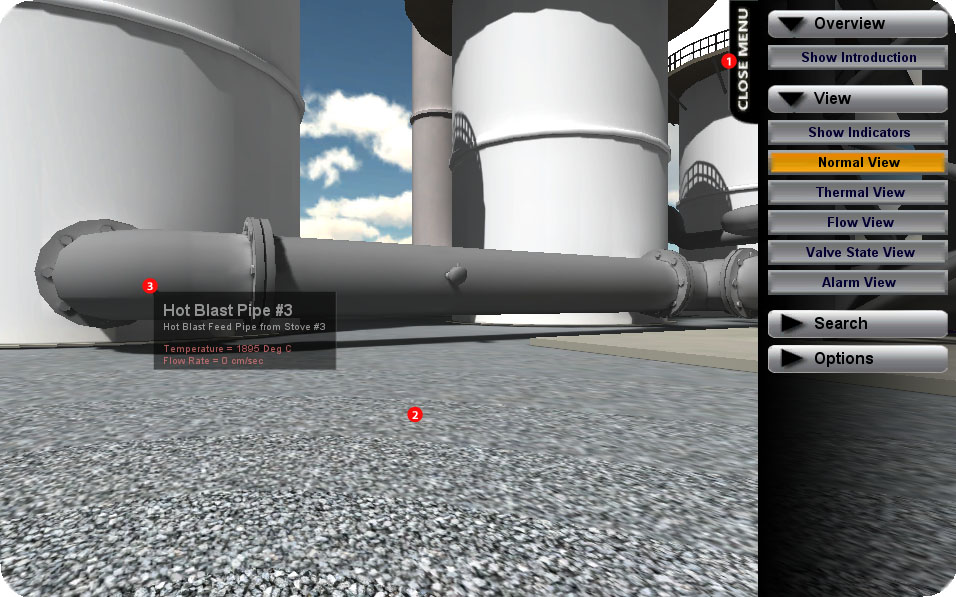
To open the main menu, click on the 'Open Menu' button (1) in the upper-right hand corner of the screen.
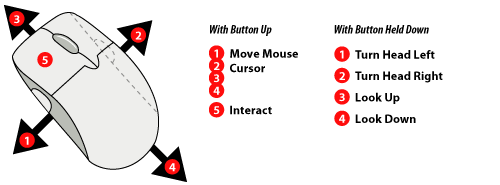
To turn your head and look around, click in the main area of the screen (2) with the left mouse button, hold it down and move your mouse. Release the mouse again to stop moving.
Hover your mouse over objects in your scene to discover more about them (3).
Some objects are interactive or can provide more information - click on them to bring up a menu of options.
Movement
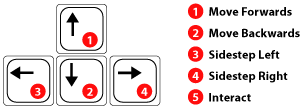
You can use the arrow keys on your keyboard to control movement - the up key will move you in the direction you are looking and the 'back' key will move away from what you are looking at. The left and right keys will side-step (move to the left or right without changing the direction you are looking in.)
If your keyboard does not include arrow keys or you are comfortable with gaming controls, you can also use the W, S, A & D keys in the same way as the arrow keys.