Introduction
Controlling a simulation from a first-person perspective can be a little strange at first, but with a little bit of practise you'll be able to move around a virtual environment with ease.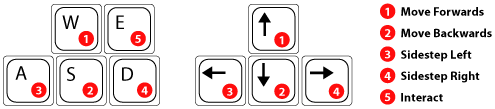
Movement
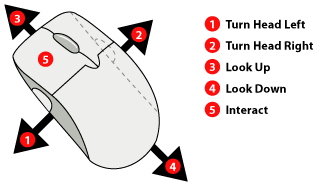
Movement is controlled by both the keyboard and mouse at the same time. Your mouse controls the direction you are facing, the keyboard controls the direction you are moving.
Moving the mouse horizontally (to the left and right) will pivot your body on the spot. Moving it up and down tilts your head up and back.
There are two parts of the keyboard you can use to control movement. You can use the arrow keys if you like (these move you forwards, backwards and side-step both left and right) - but this is not ideal. Instead, we suggest using the 'W', 'S', 'A' and 'D' keys to move. The WSAD keys are spaced the same way as the arrow keys and are used the same way - W moves forwards, S moves backwards, A edges left and D edges right.
The WSAD keys are not only more comfortable, but it means your fingers are close to the 'E' key which is used for interacting.
Interaction
If you are looking at an item that can be interacted with, text will appear in the middle of the screen to let you know.
To interact, press either the left mouse-button, or the 'E' key.
Some items allow you to do more than one thing - in this case a menu will appear.
Navigating Menus
When you open any menu the mouse-cursor will appear. You can either use your mouse to choose an option from the list, or you can use the arrow up/down or the W/S keys to move between the options and press 'E' when you have found the one you like.
Note that you must use the keyboard or the mouse - trying to use both by choosing with the keyboard and then clicking with the mouse will usually result in you choosing the wrong option.