Introduction:
Controlling a simulation from a first-person perspective can be a little strange at first, but with a little bit of practise you'll be able to move around a virtual environment with ease.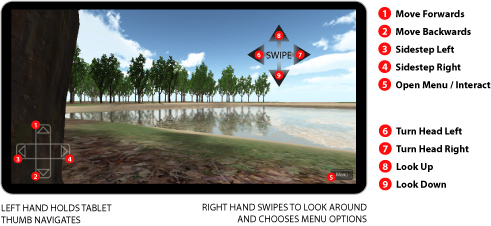
Movement:
Movement is controlled by touching the screen. The four direction buttons on the lower left corner are designed to be pressed with the thumbs and allow you to move forward (up), backwards (down) and step to both the left and right.By touching elsewhere in the screen you control the direction you are facing - swiping your finger left and right will turn your body on the spot, while moving your finger up and down will move your head up and down.
We suggest you take most of the weight of the tablet in the fingers and palm of your left hand, allowing the thumb to be used for movement and the fingers of the other hand free to provide extra support or look around.
Since most modern tablets and mobile phones support multi-touch screens, you can move and turn at the same time by using both hands at once.
Interaction:
When you approach an interactive item, text will appear in the center of the screen. Some interactive items are also marked with floor markers or a glow.Some items allow you to do more than one thing - in this case a menu will appear.