Introduction
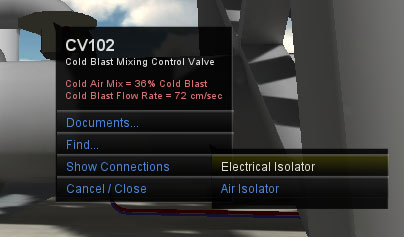
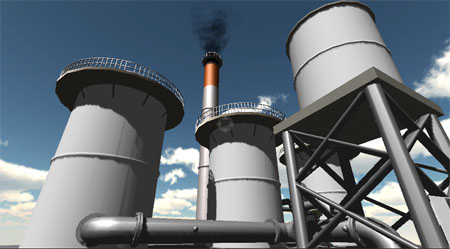
The Furnace sample demonstrates some of the concepts around plant familiarisation and visualisation in a 3D environment. In this case we are looking at a stylised version of a Blast Furnace.
This document will show you some of the basic controls and things you can explore in this sample.
NOTE: This demo is still under active development - it may contain incomplete features or bugs of varying degrees.




Movement
Once you arrive in the field, you can control your viewpoint by following the movement instructions for desktops and laptops or the movement instructions for tablets, touchscreens and handhelds.
A Brief Overview
Use the menu on the right-hand side of the screen to turn vision modes on and off, search your plant for objects, hide system components and toggle options.
Note for High Resolution Screens: If you have a very high-resolution small screen device (ie. tablets or mobile phones), you can change the size of the on-screen elements by going to the Options menu and changing the 'UI Scale'. This will make text easier to read and buttons easier to press.